
VPN Access (eduVPN)
The eduVPN service allows users of the INFN Padova Section to remotely access services that require a VPN connection, using their INFN-AAI digital identity.
Available profiles
By default, users of the Section only see the “Padova – Solo SSNN” profile. This provides access to VPN-protected INFN National Services, such as the attendance portal (cartellino), the business travel portal (portale missioni), national software licences, and other services requiring this type of access.
The default profile is sufficient to use these services: no additional authorisation is required.
Additional profiles can be requested to remotely access the Section’s internal resources as well.
Two options are currently available:
- Padova – Split tunnel:
Only traffic destined for the Section’s networks passes through the VPN; regular Internet browsing continues to use the user’s own connection directly. For example, you can connect to an internal resource through the VPN while browsing a public website through your home Internet connection. - Padova – Full tunnel:
In addition to providing access to internal resources, this profile routes all Internet traffic from the device through the Section’s network.
This option can be useful during business trips to countries that severely restrict access to certain websites and Internet services, as it allows you to reach them through the Section’s connection.
Both additional profiles require authorization from the IT Service following a request explaining the reasons for access. The request should specify the resources you need to access and your work requirements, so that the Computing Service can determine the most suitable profile.
Instructions
Installing the application
Download and install the client from the official eduVPN download page, selecting the version for your operating system.
Clients are available for Windows, macOS, Linux, Android, and iOS.
Configuring INFN access
Screen layouts and button labels may vary depending on your operating system and client version.
1. Launch the eduVPN application.

2. Enter vpn.infn.it in the institution or server search field.
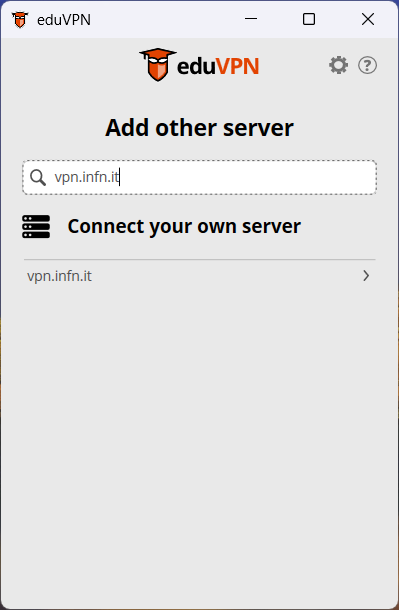
3. Select the server from the list to start the login process.
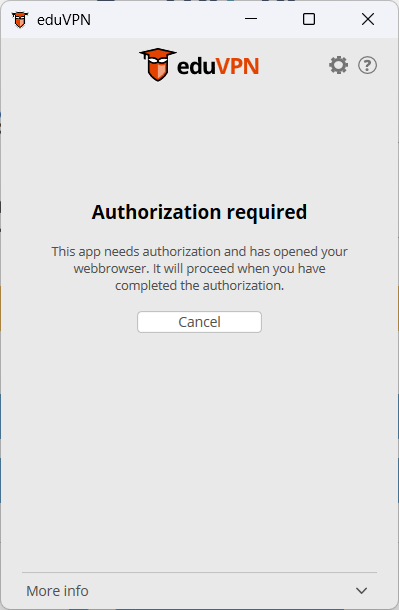
4. In the browser window that opens, sign in using your INFN-AAI digital identity, following the instructions displayed.
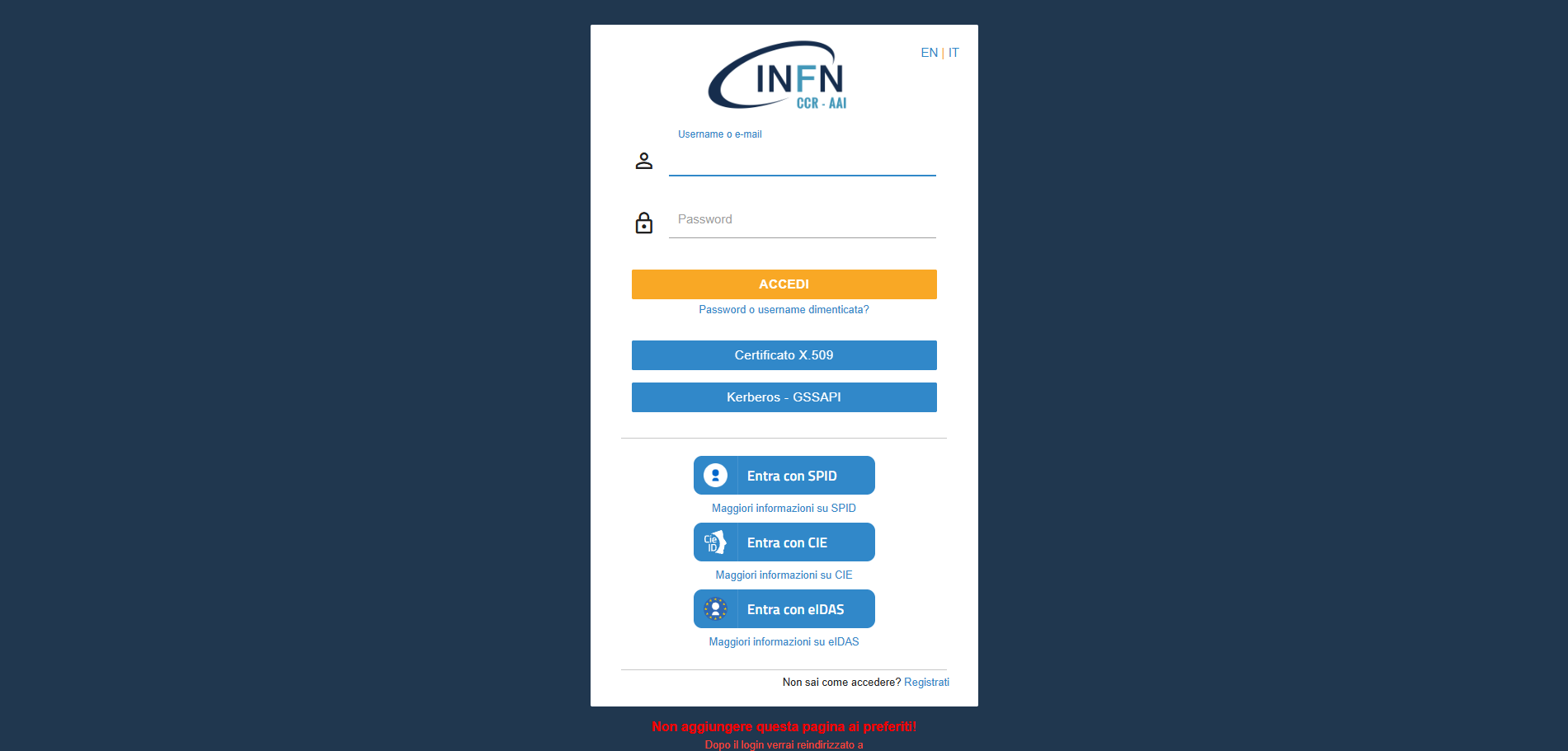
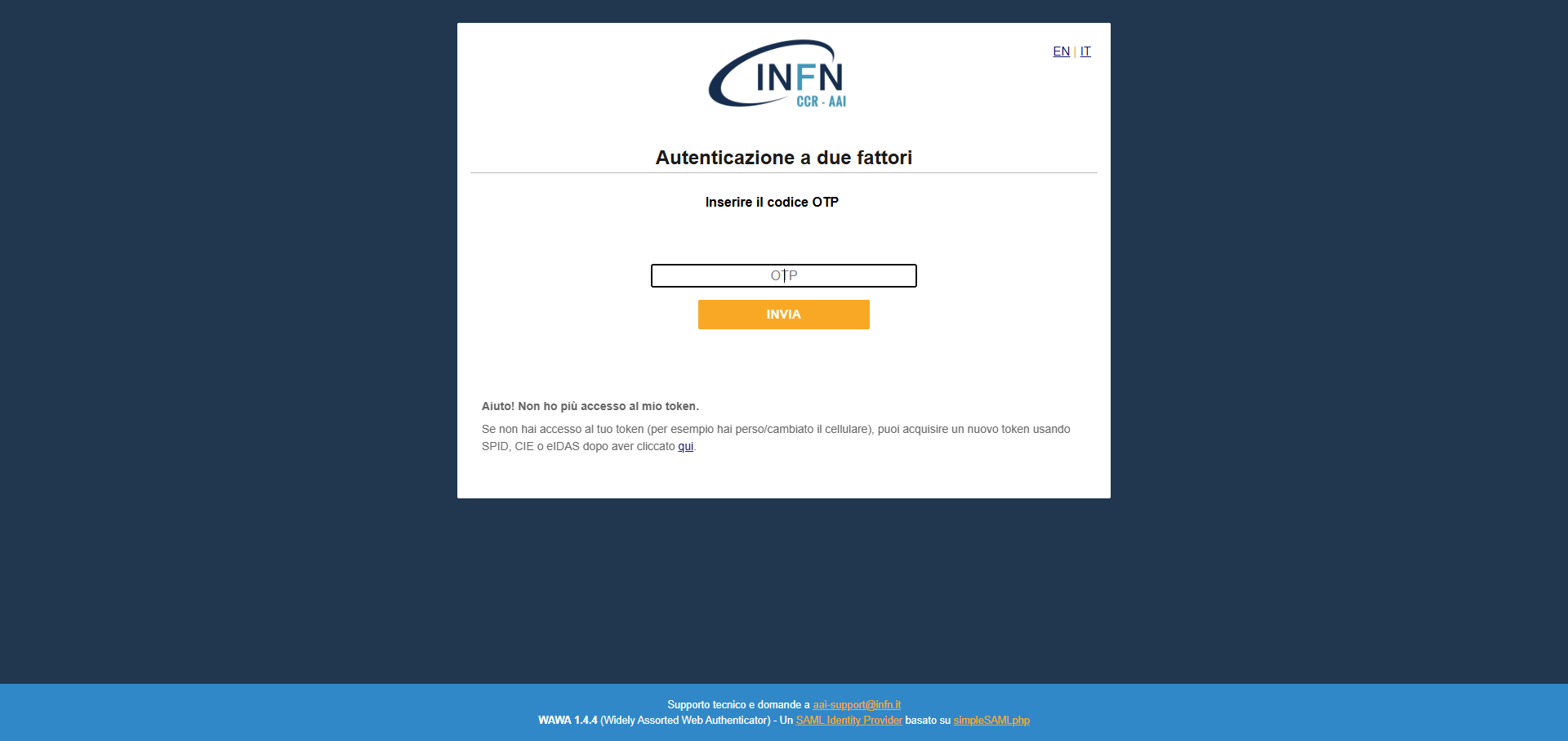
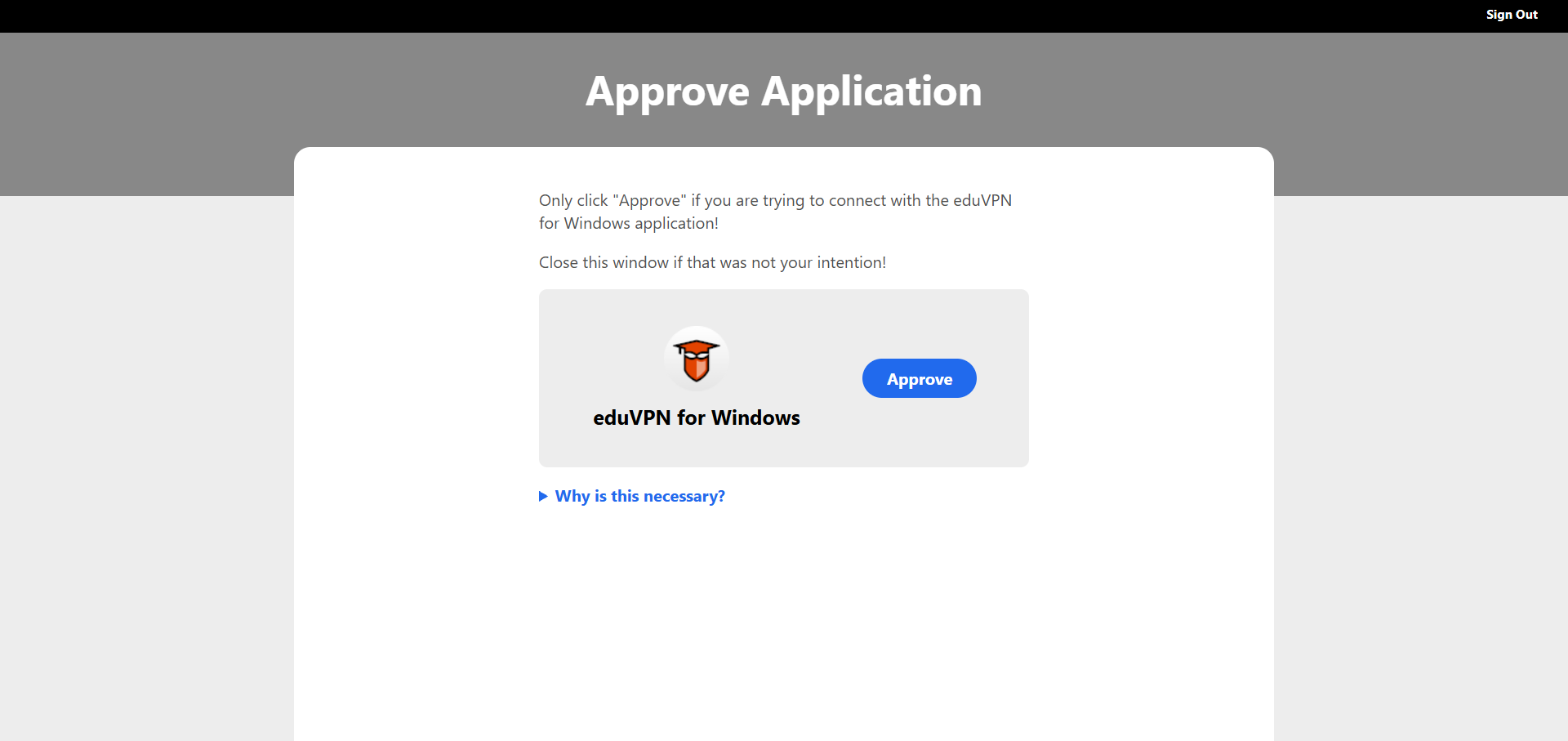
5. When prompted, approve the eduVPN application’s authorisation request.
Connecting to the VPN
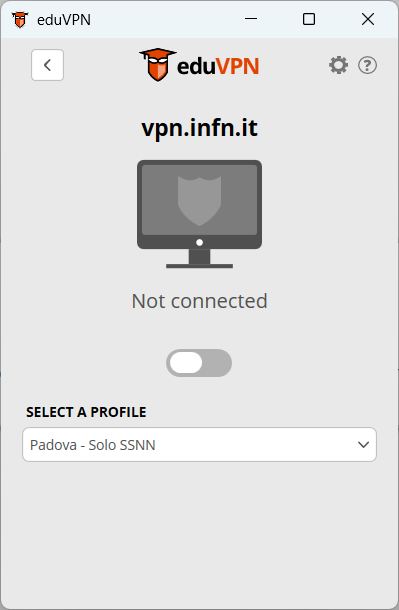
1. Select the desired profile from the drop-down menu and activate the VPN using the connection slider.
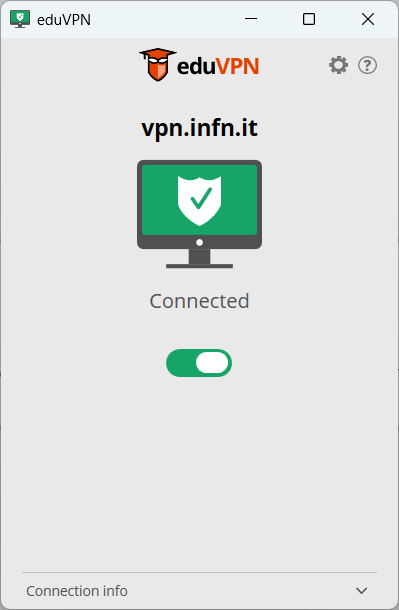
2. Wait until the application indicates that the VPN is connected. You can now access the services you need.
Disconnecting and reconnecting
When you have finished, remember to disconnect using the connection slider.
For subsequent connections, reopen the client, select the previously configured INFN server, and connect using the desired profile. If you are asked to authenticate again, complete the process in your browser and return to the application as described above.
Support
If you have trouble connecting or would like to request an additional profile, contact the Padova Section’s IT Services through the usual support channels.
To help us assist you, please include your operating system, the profile you are using, the service you are trying to access, and any error message displayed.